

A Spread is the collection of Snacks and Packs a Display plays. Each Display has one playing Spread, but you can keep others ready whenever you’re in the mood for something different.
Switch or start fresh
On Curate, tap the playing Spread’s name beneath the board preview. You’ll see your Spreads, with Playing marking the one currently on the Display.
Tap Play beside another saved Spread to switch to it. Want to start something new? + New spread lets you give it a name and begin with an empty Spread. It won’t appear on the Display until you choose Play.
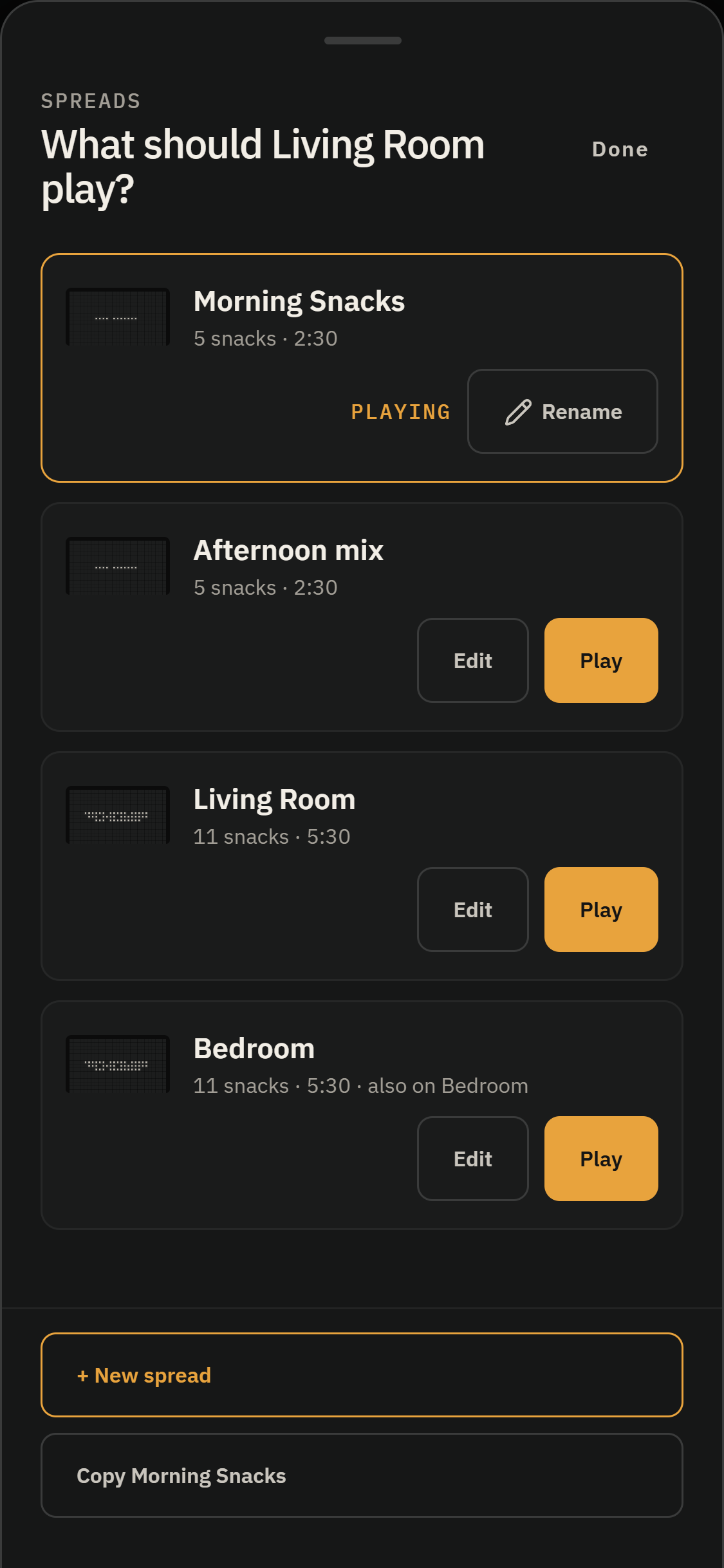
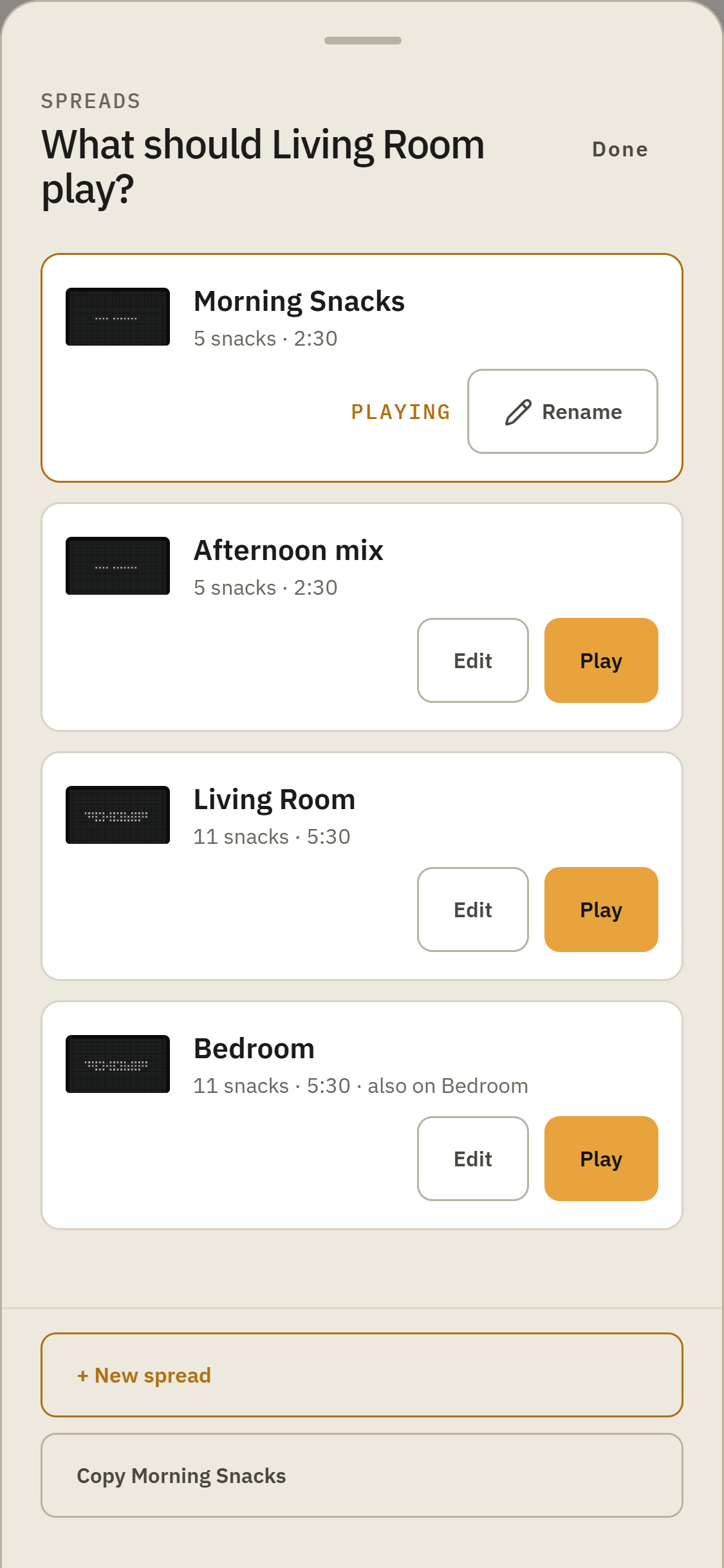
Copy spread makes a separate copy of the Spread playing now, so you can try something different without changing the original.
Keep it how you like it
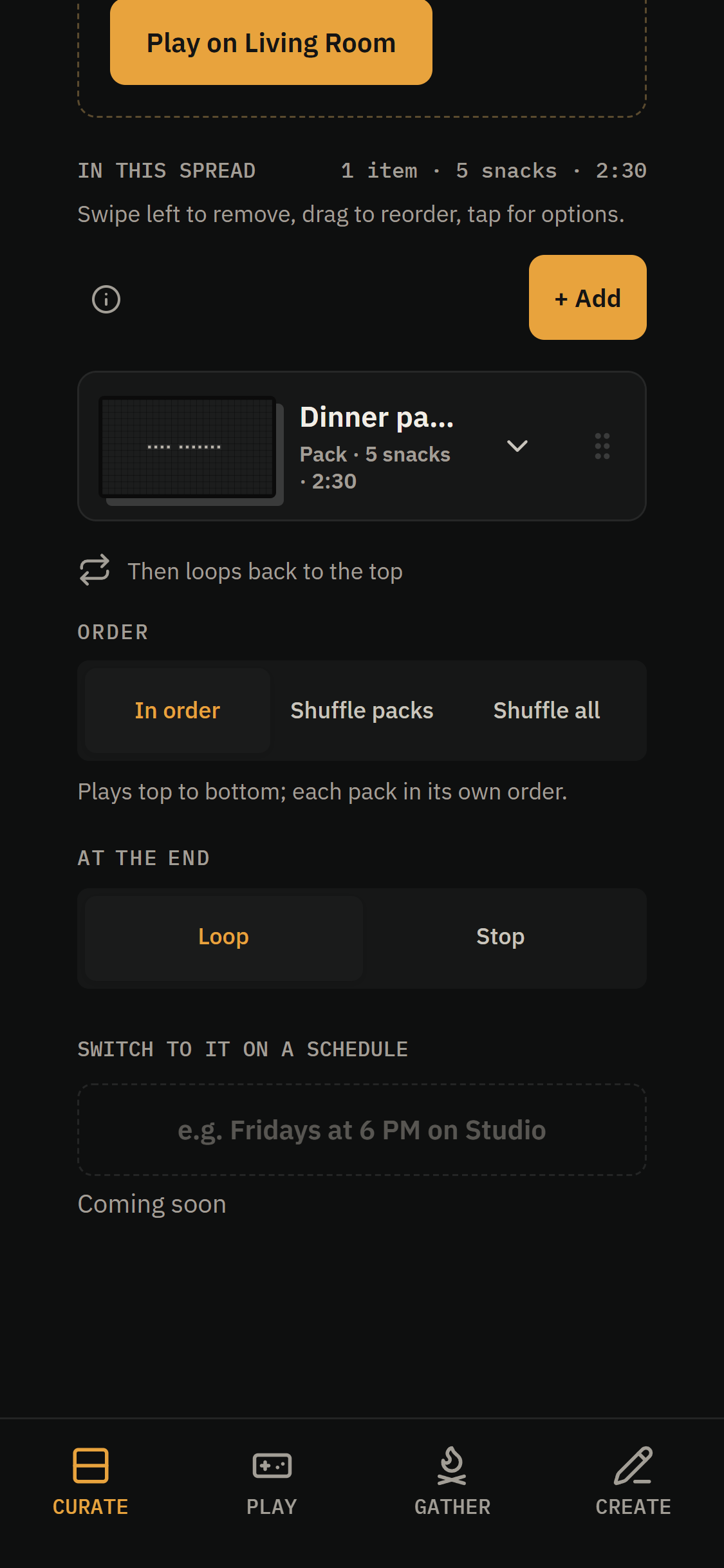
Tap Add on the playing Spread to bring in Snacks or Packs. Drag to rearrange them, swipe left to remove something, or swipe right to play it next.
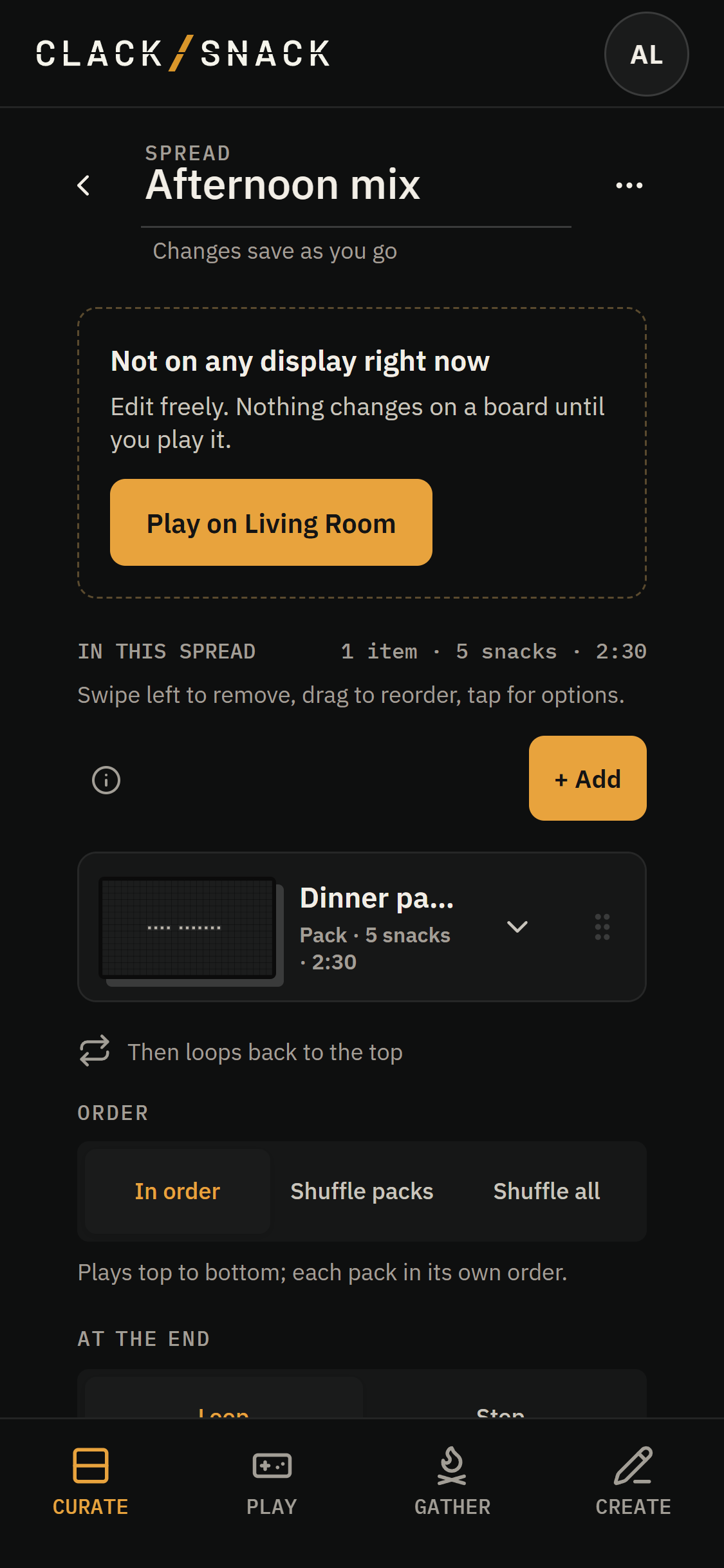
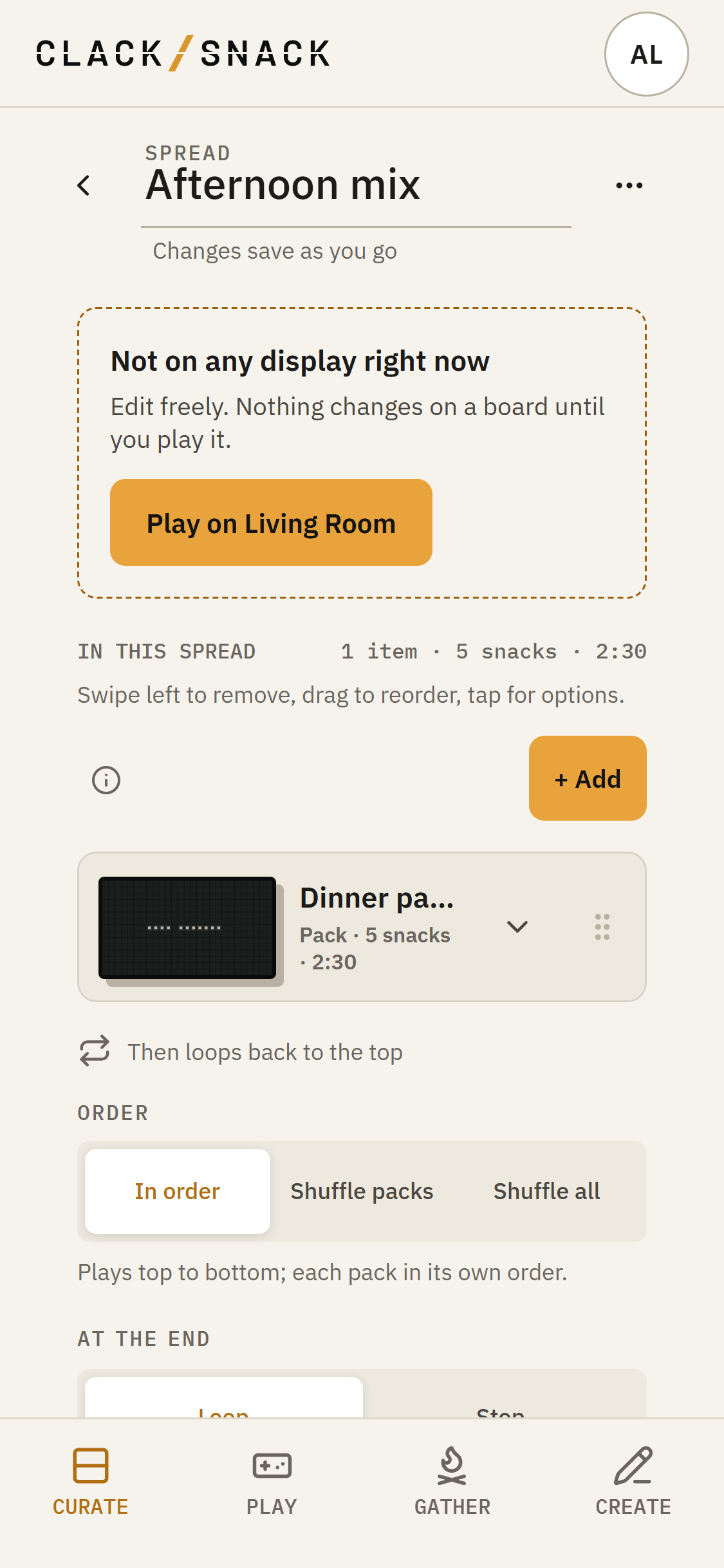
Changes to the playing Spread save automatically and take effect right away. You can also open another saved Spread with Edit in the Spreads list. Changes there save as you go, but won’t appear on the Display until you play that Spread.
Use Rename beside the playing Spread, or change the name at the top of a saved Spread. In the saved editor, More actions includes Copy and Delete.
Deleting a Spread doesn’t delete its Snacks or Packs from your Library. A Spread that’s currently playing on a Display must be switched to another before it can be deleted.
How it plays
Under Order, choose In order, Shuffle packs, or Shuffle all. At the end lets you choose Loop to start again or Stop when everything has played.
Linked Snacks stay together, even when you shuffle. Each Snack also keeps its own Hold time, which you can change in the Snack editor.