

Sometimes you want the board to have something particular to say at a particular time.
A scheduled takeover plays a Snack or Pack when you choose, then lets the Spread carry on from where it left off.
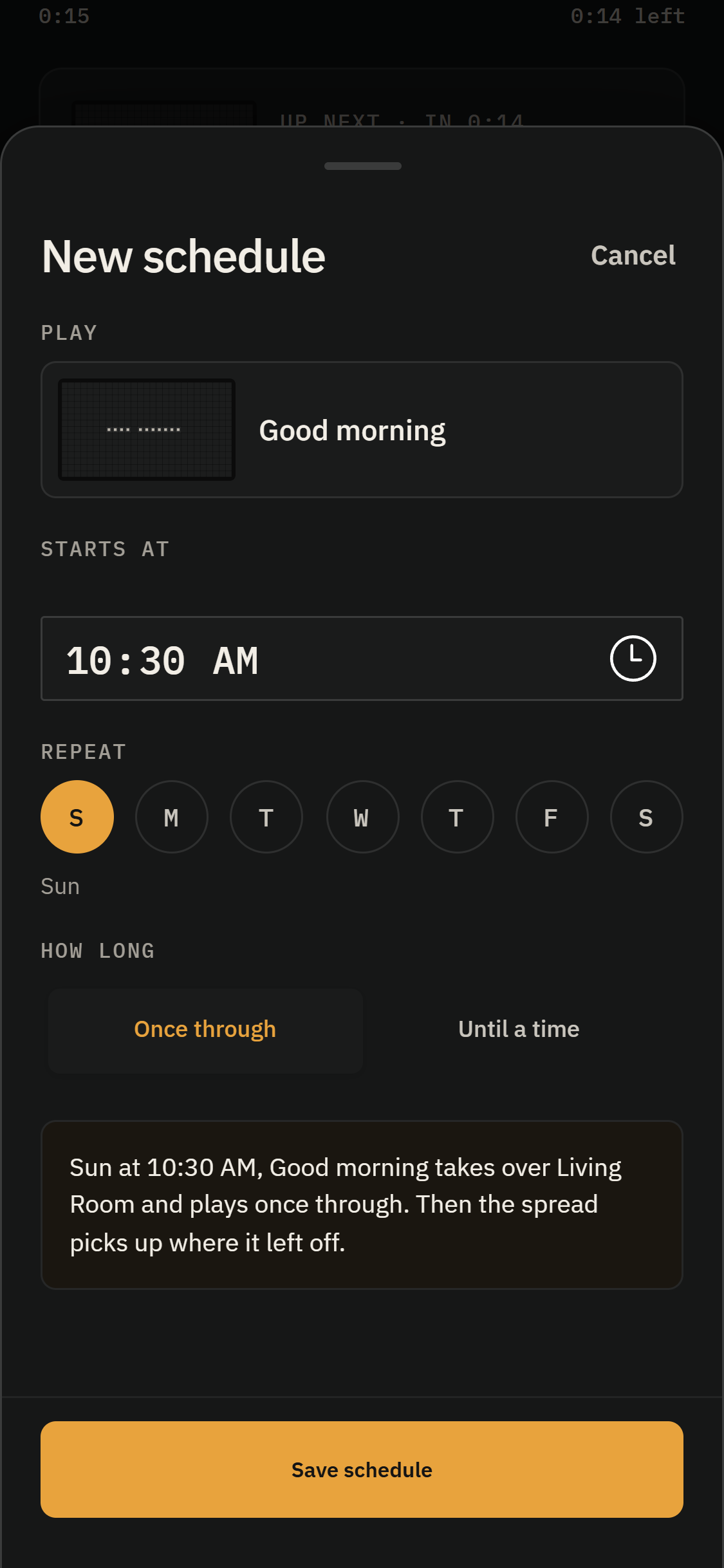
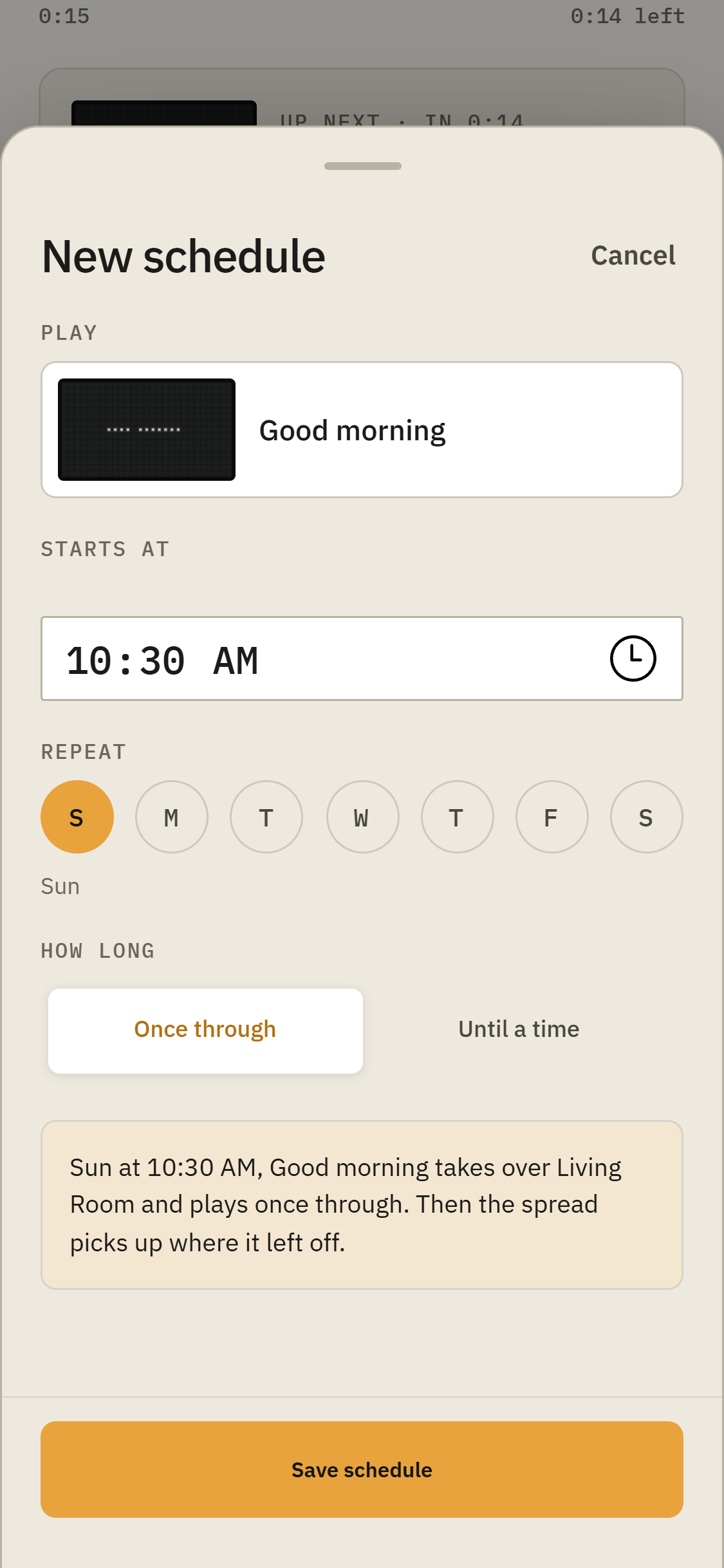
On Curate, find Scheduled beneath the playing Spread and tap + New. Choose what to Play, set Starts at, and select any days under Repeat.
Leave the days unselected for a one-time takeover at the next occurrence of that time. Under How long, choose Once through to play it once, or Until a time to keep it looping until the time you set.
Tap Save schedule when you’re ready.
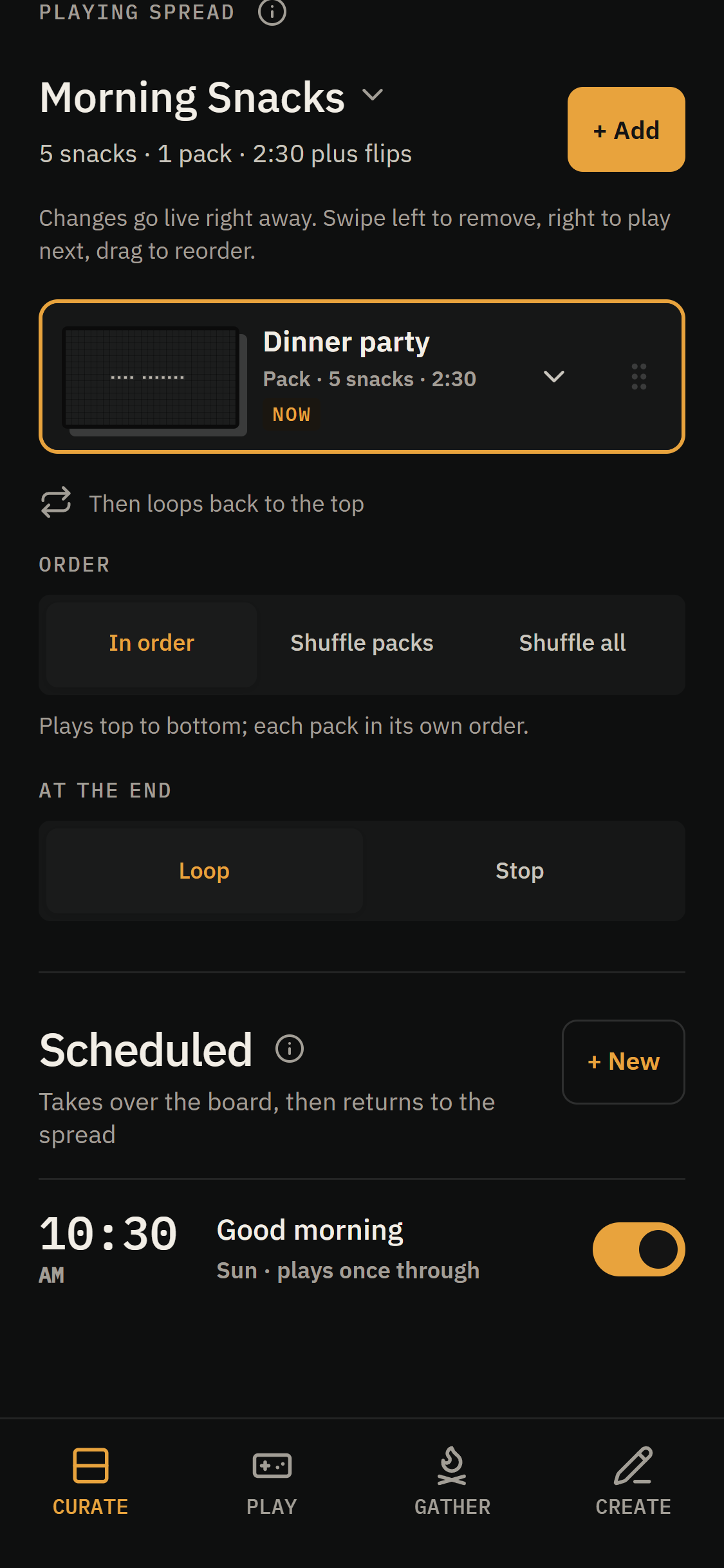
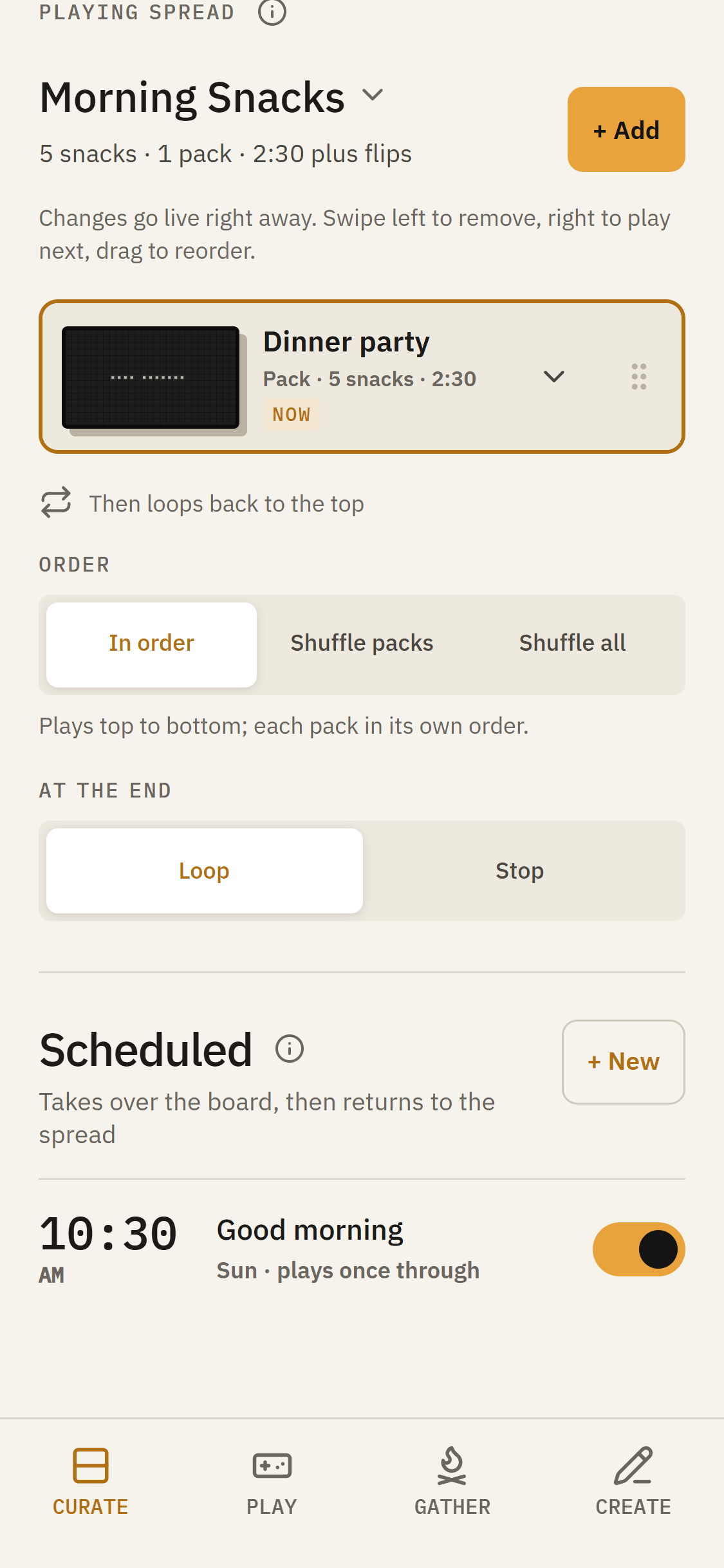
Your schedules appear in the Scheduled list. Use the switch beside one to turn it on or off, or tap its row to make changes. Existing schedules also offer Try it now and Delete.
When a takeover is approaching, Next takeover appears near Up next.
Schedules belong to individual Displays. If a game is in progress when a takeover is due, it waits until the game finishes. A once-through takeover may be skipped if it’s running more than 15 minutes late.